All Images
Automated Version Control
Figure 1
Image 1 of 1: ‘Comic: a PhD student sends "FINAL.doc" to their supervisor, but after several increasingly intense and frustrating rounds of comments and revisions they end up with a file named "FINAL_rev.22.comments49.corrections.10.#@$%WHYDIDCOMETOGRADSCHOOL????.doc"’
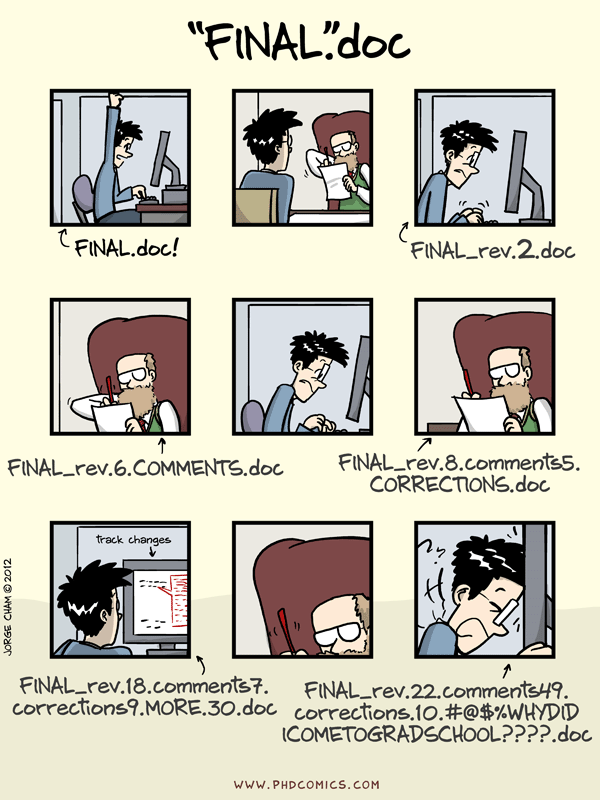
Figure 2
Image 1 of 1: ‘A diagram demonstrating how a single document grows as the result of sequential changes’
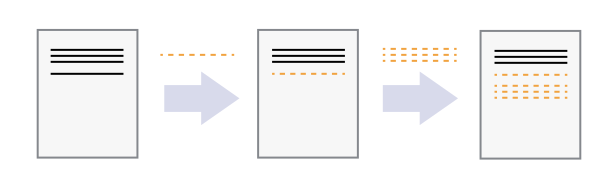
Figure 3
Image 1 of 1: ‘A diagram with one source document that has been modified in two different ways to produce two different versions of the document’
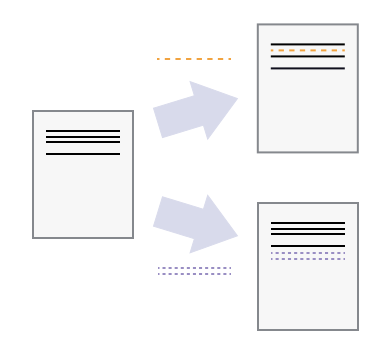
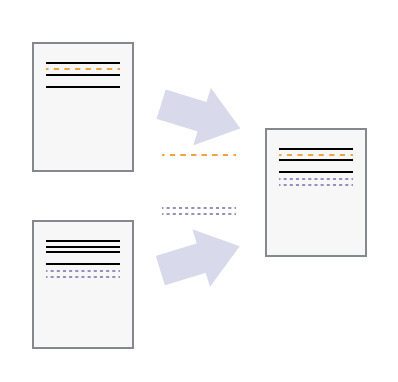
Figure 4
Image 1 of 1: ‘A diagram that shows the merging of two different document versions into one document that contains all of the changes from both versions’
Setting Up Git
Creating a Repository
Tracking Changes
Figure 1
Image 1 of 1: ‘A diagram showing how "git add" registers changes in the staging area, while "git commit" moves changes from the staging area to the repository’
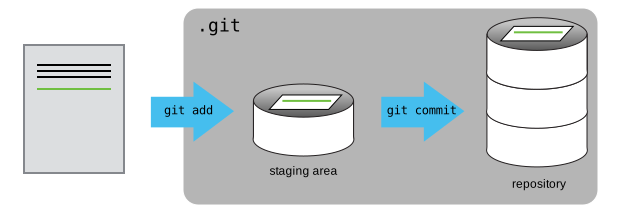
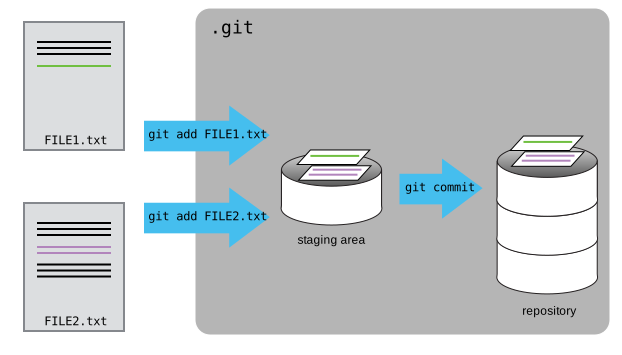
Figure 2
Image 1 of 1: ‘A diagram showing two documents being separately staged using git add, before being combined into one commit using git commit’
Exploring History
Figure 1
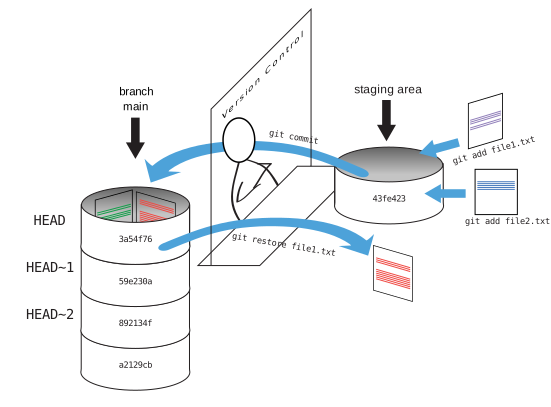
Image 1 of 1: ‘A diagram showing how git restore can be used to restore the previous version of two files’
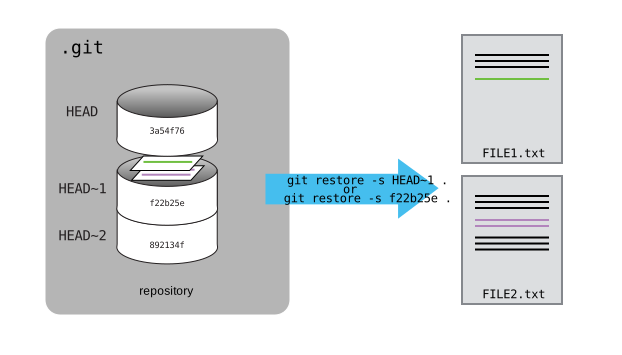
Figure 2
Image 1 of 1: ‘A diagram showing the entire git workflow: local changes are staged using git add, applied to the local repository using git commit, and can be restored from the repository using git checkout’
Ignoring Things
Remotes
Figure 1
Image 1 of 1: ‘The first step in creating a project on GitLab: clicking the "create new" button’

Figure 2
Image 1 of 1: ‘The second step in creating an Algobank project: filling out the new repository form to provide the individual repository name, and specify that a readme should not be created’
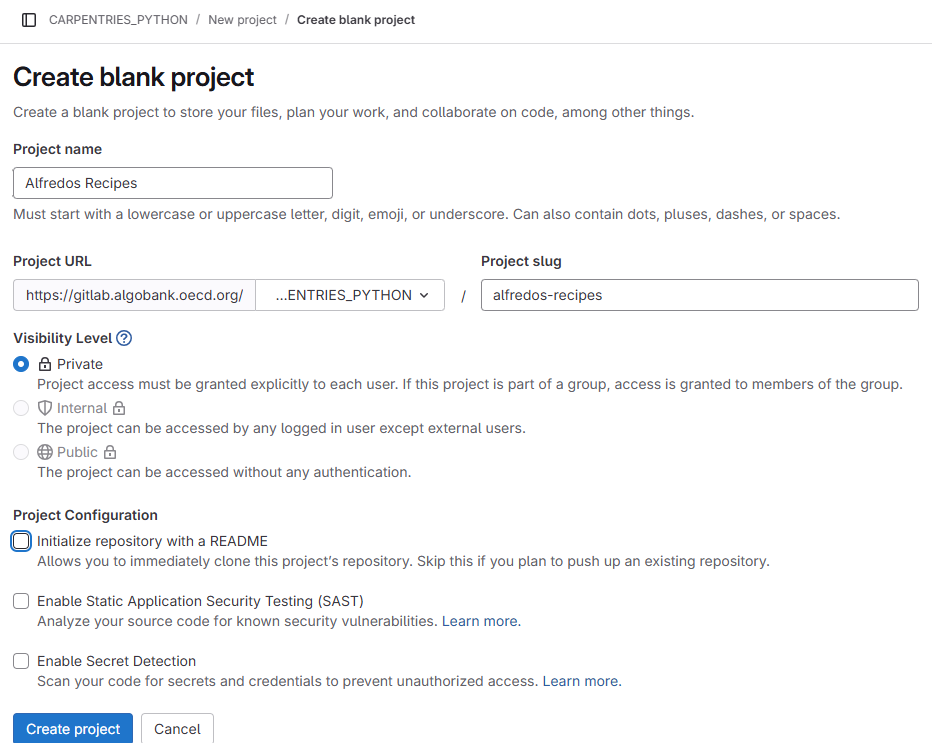
Figure 3
Image 1 of 1: ‘The summary page displayed by the Algobank after a new repository has been created. It contains instructions for configuring the new repository as a git remote’
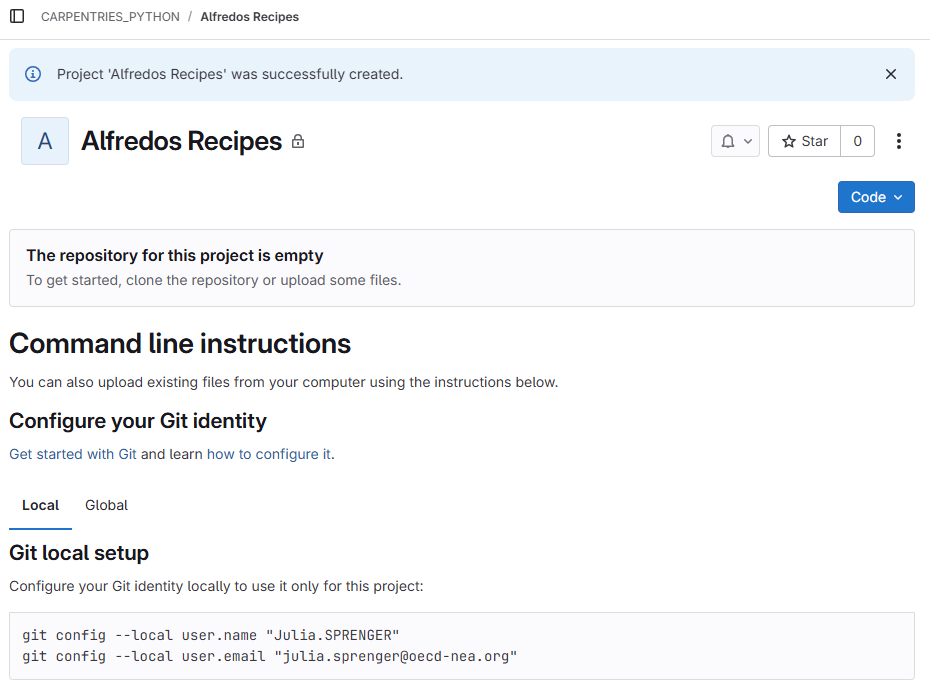
Figure 4
Image 1 of 1: ‘A diagram showing how "git add" registers changes in the staging area, while "git commit" moves changes from the staging area to the repository’
Figure 5
Image 1 of 1: ‘A diagram illustrating how the GitHub "recipes" repository is also a git repository like our local repository, but that it is currently empty’
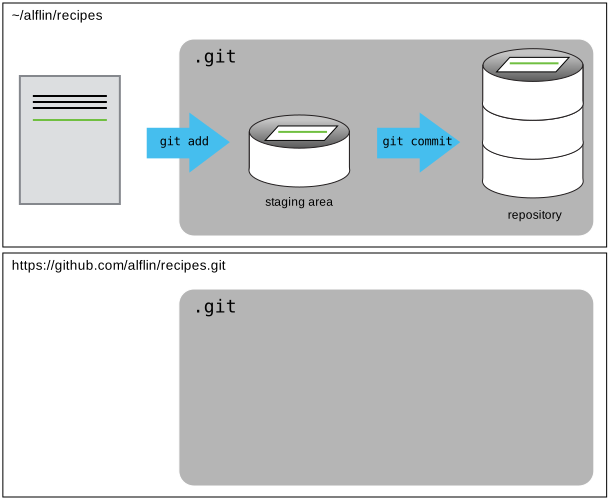
Figure 6
Image 1 of 1: ‘A screenshot showing the https url of the repository’
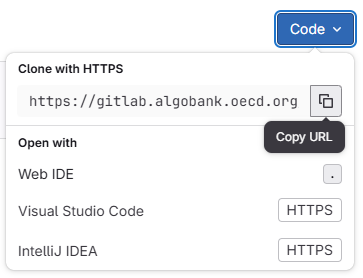
Figure 7
Image 1 of 1: ‘Open the user preferences menu by clicking on your avatar and selecting 'preferences'’
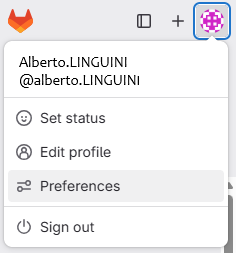
Figure 8
Image 1 of 1: ‘Create a personal access token with read_repository and write_repository scope’
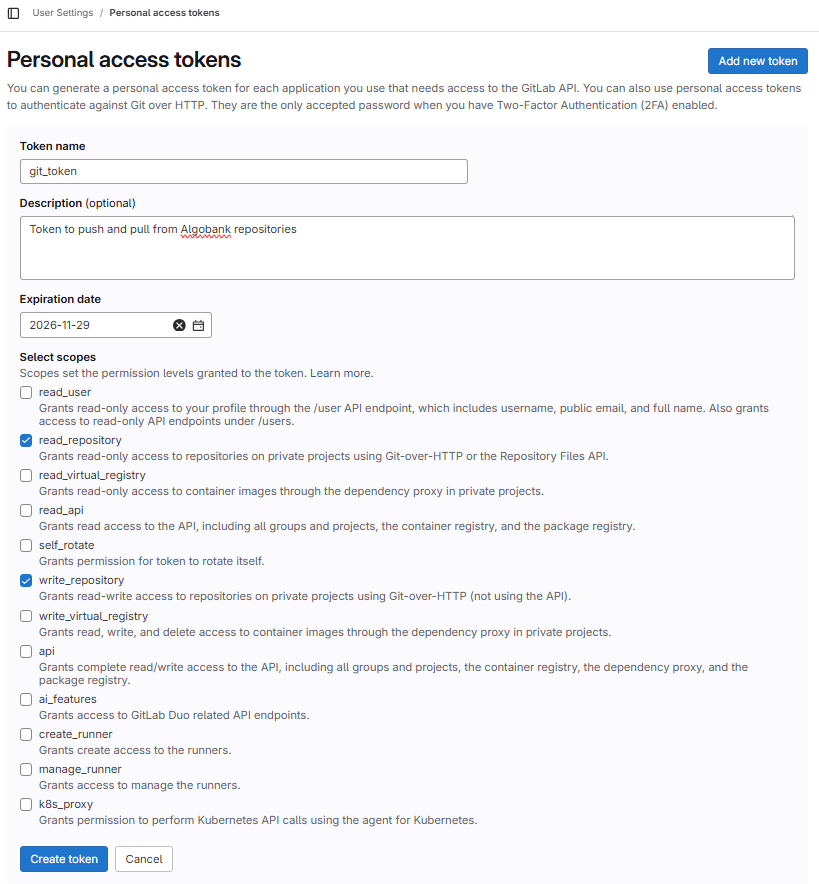
Figure 9
Image 1 of 1: ‘Prompt windows for git credentials’
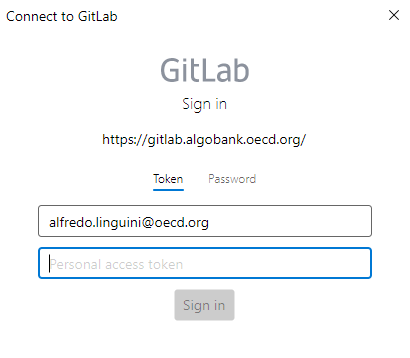
Figure 10
Image 1 of 1: ‘A diagram showing how "git push origin" will push changes from the local repository to the remote, making the remote repository an exact copy of the local repository.’
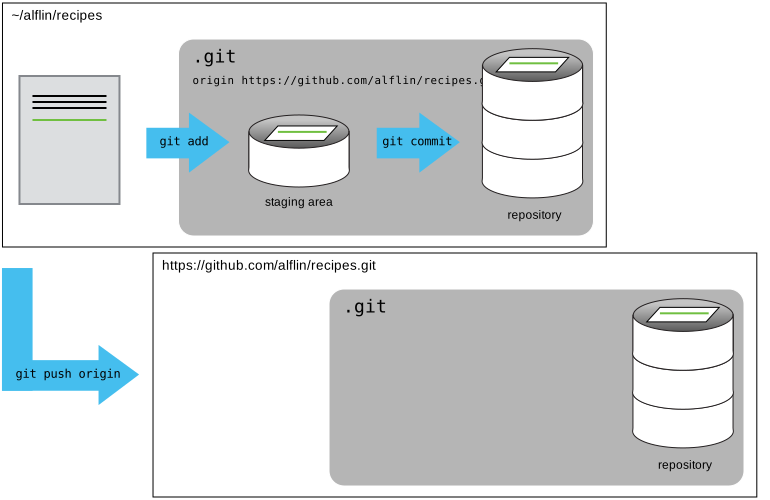
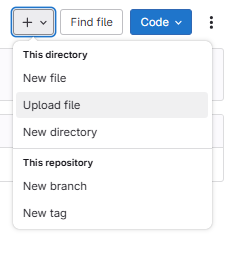
Figure 11
Image 1 of 1: ‘To upload a file click the `+` button at the top of the project page.’
Collaborating
Figure 1
Image 1 of 1: ‘A diagram showing that "git clone" can create a copy of a remote GitHub repository, allowing a second person to create their own local repository that they can make changes to.’
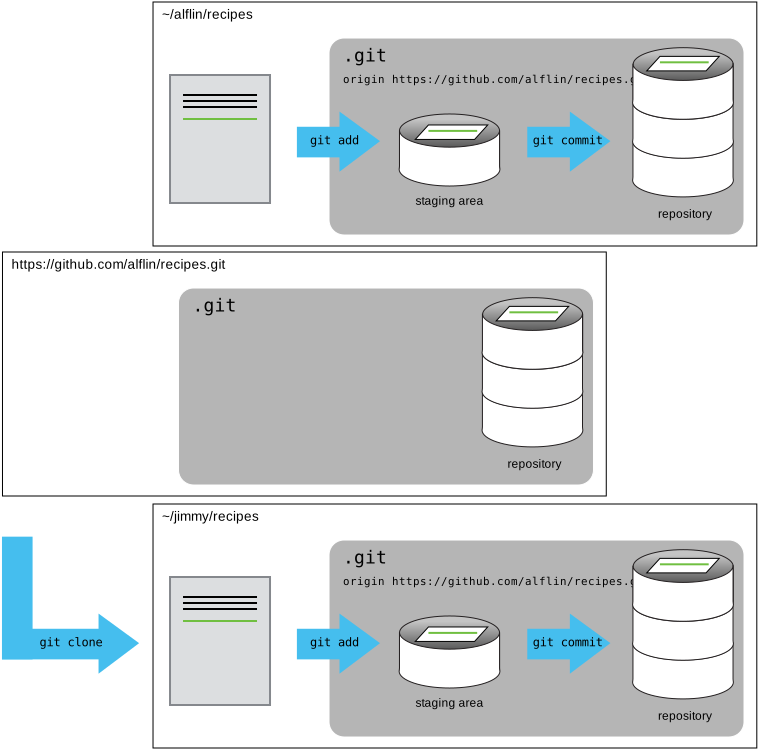
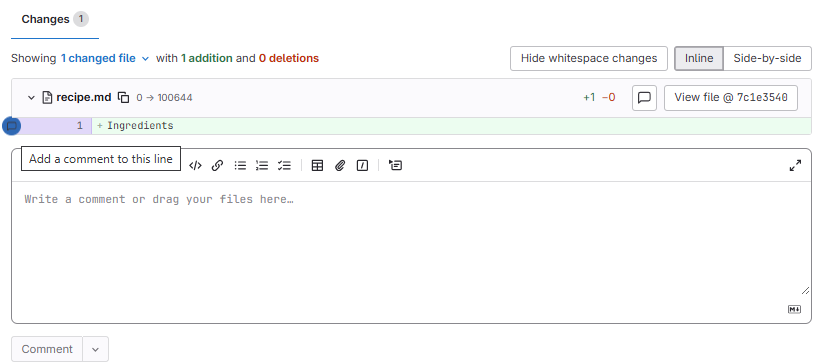
Figure 2
Image 1 of 1: ‘To comment on a single line of a diff, cover over the begining of the line until a blue comment icon appears.’
Conflicts
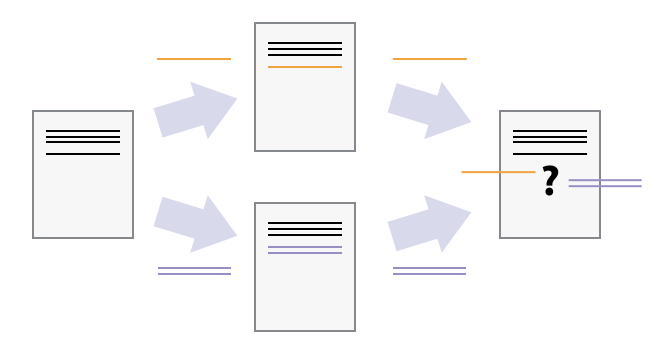
Figure 1
Image 1 of 1: ‘A diagram showing a conflict that might occur when two sets of independent changes are merged’
Open Science
Licensing
Citation
Hosting
Supplemental: Using Git from RStudio
Figure 1
Image 1 of 1: ‘RStudio screenshot showing the file menu dropdown with "New Project..." selected’
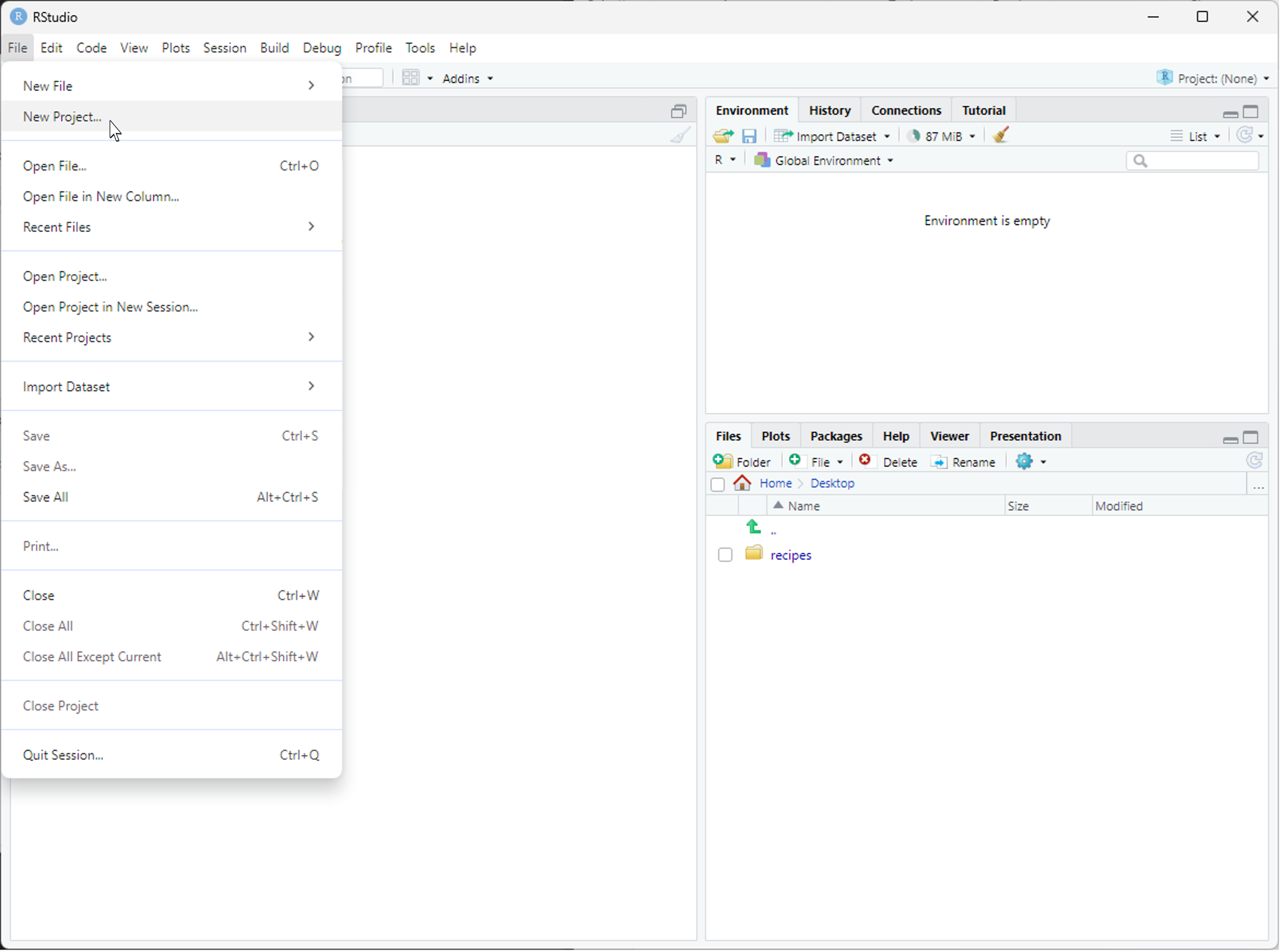
Figure 2
Image 1 of 1: ‘RStudio screenshot showing New Project dialog window with "Create project from existing directory" selected’
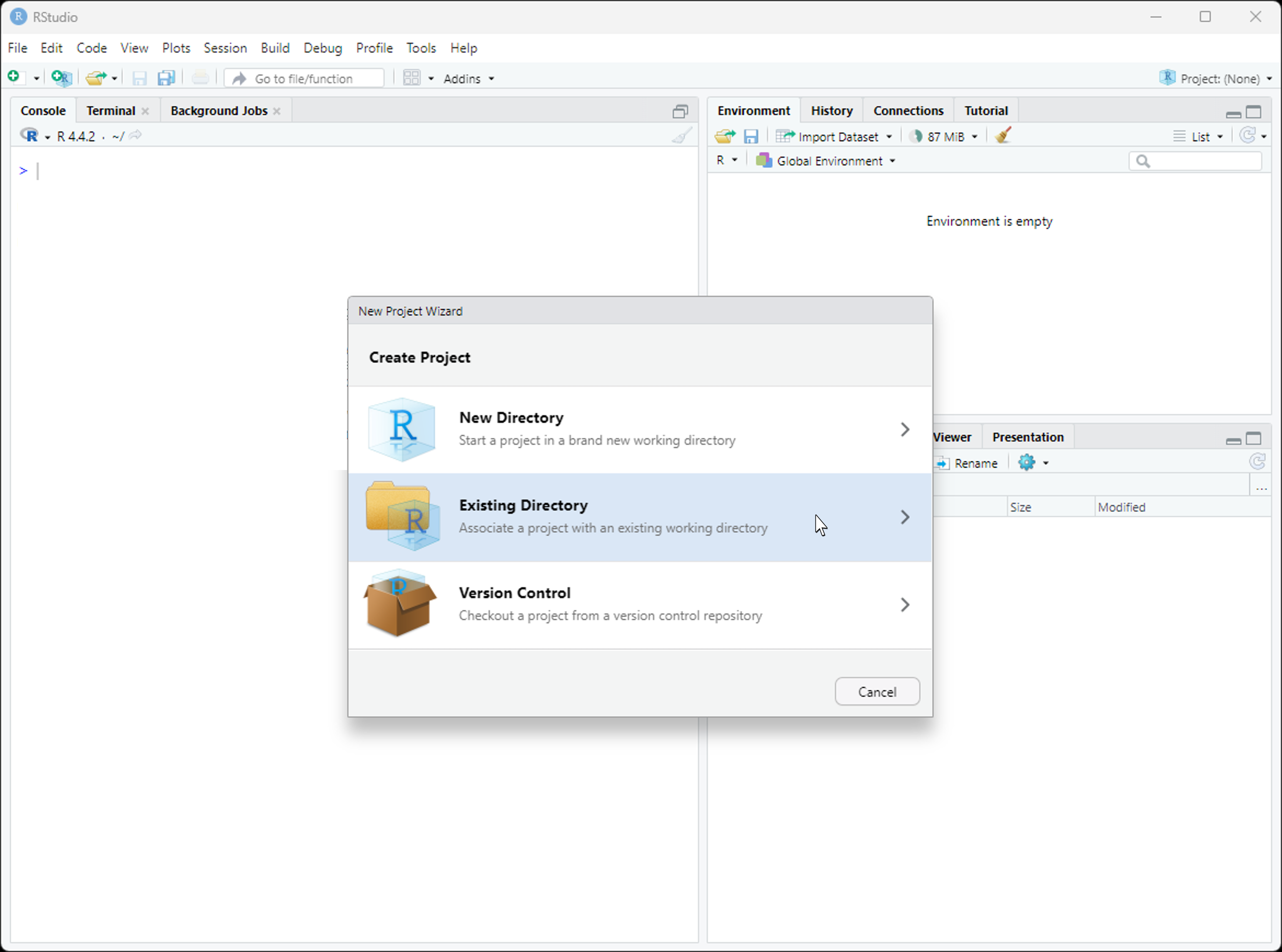
Figure 3
Image 1 of 1: ‘RStudio window showing the "Create Project From Existing Directory" dialog. In the dialog, the project working directory has been set to "~/Desktop/recipes"’
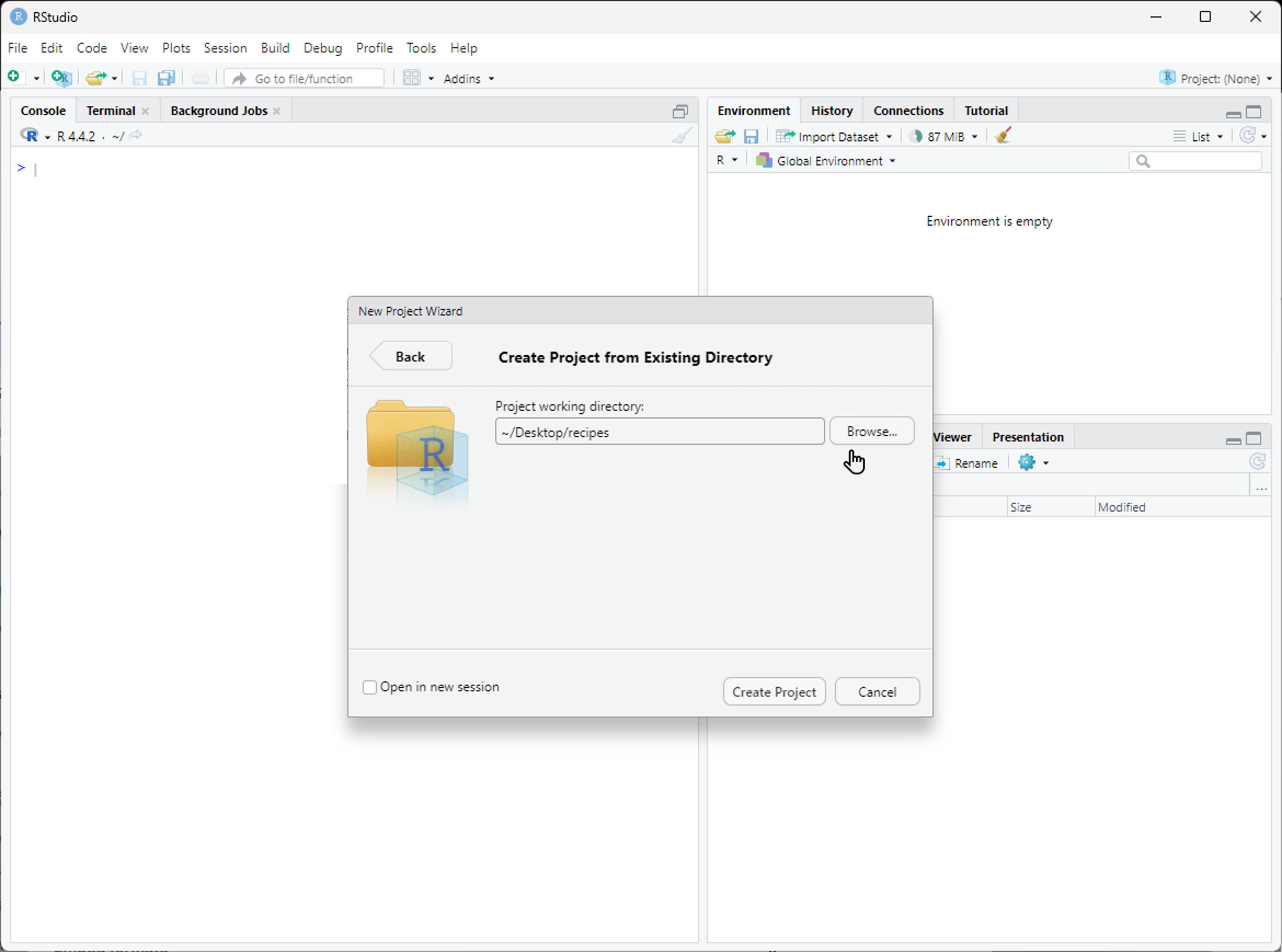
Figure 4
Image 1 of 1: ‘RStudio window after new project is created with large arrow pointing to vertical Git menu bar.’
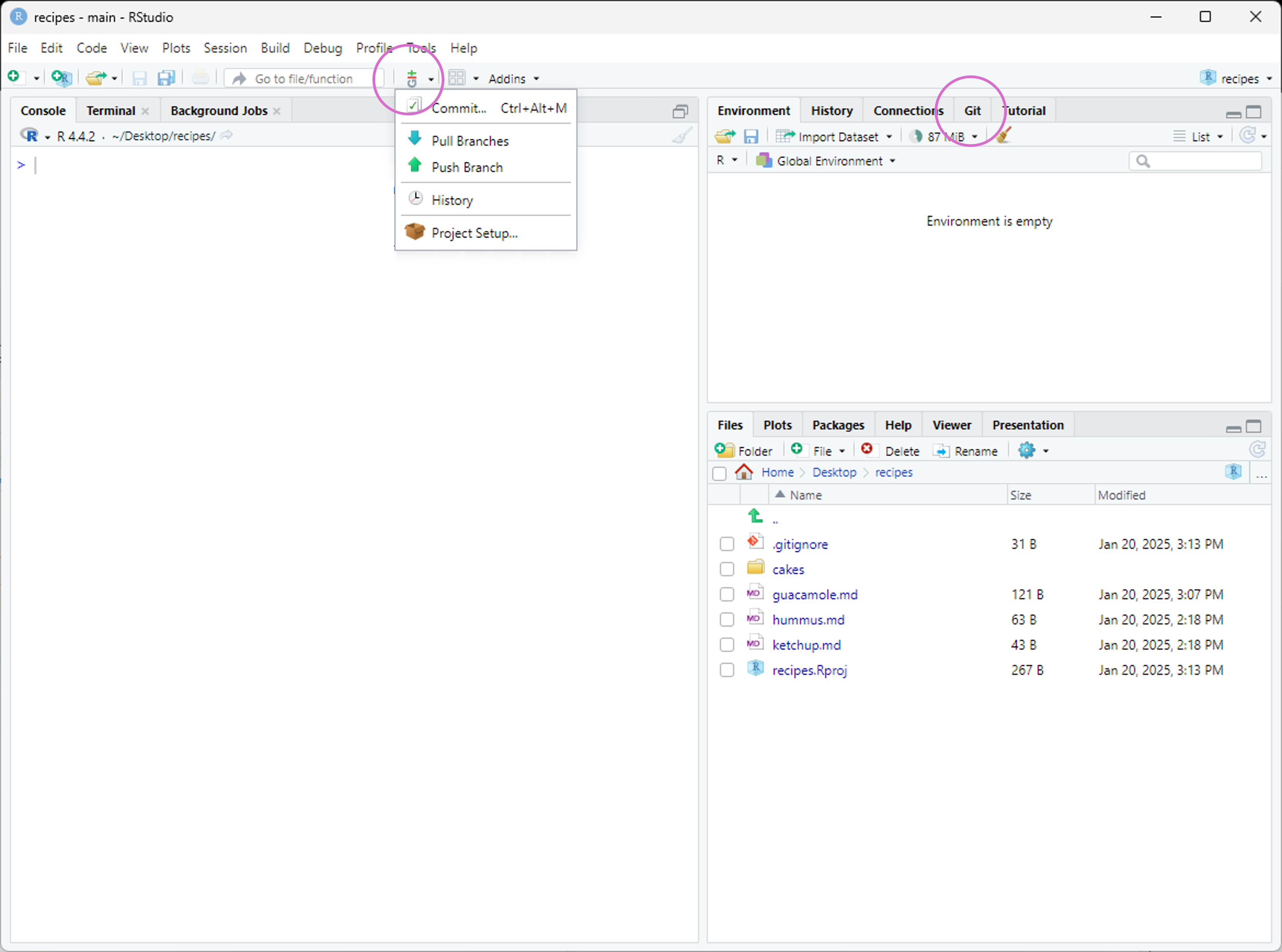
Figure 5
Image 1 of 1: ‘RStudio window demonstrating the use of the editor panel to modify the "pluto.txt" file’
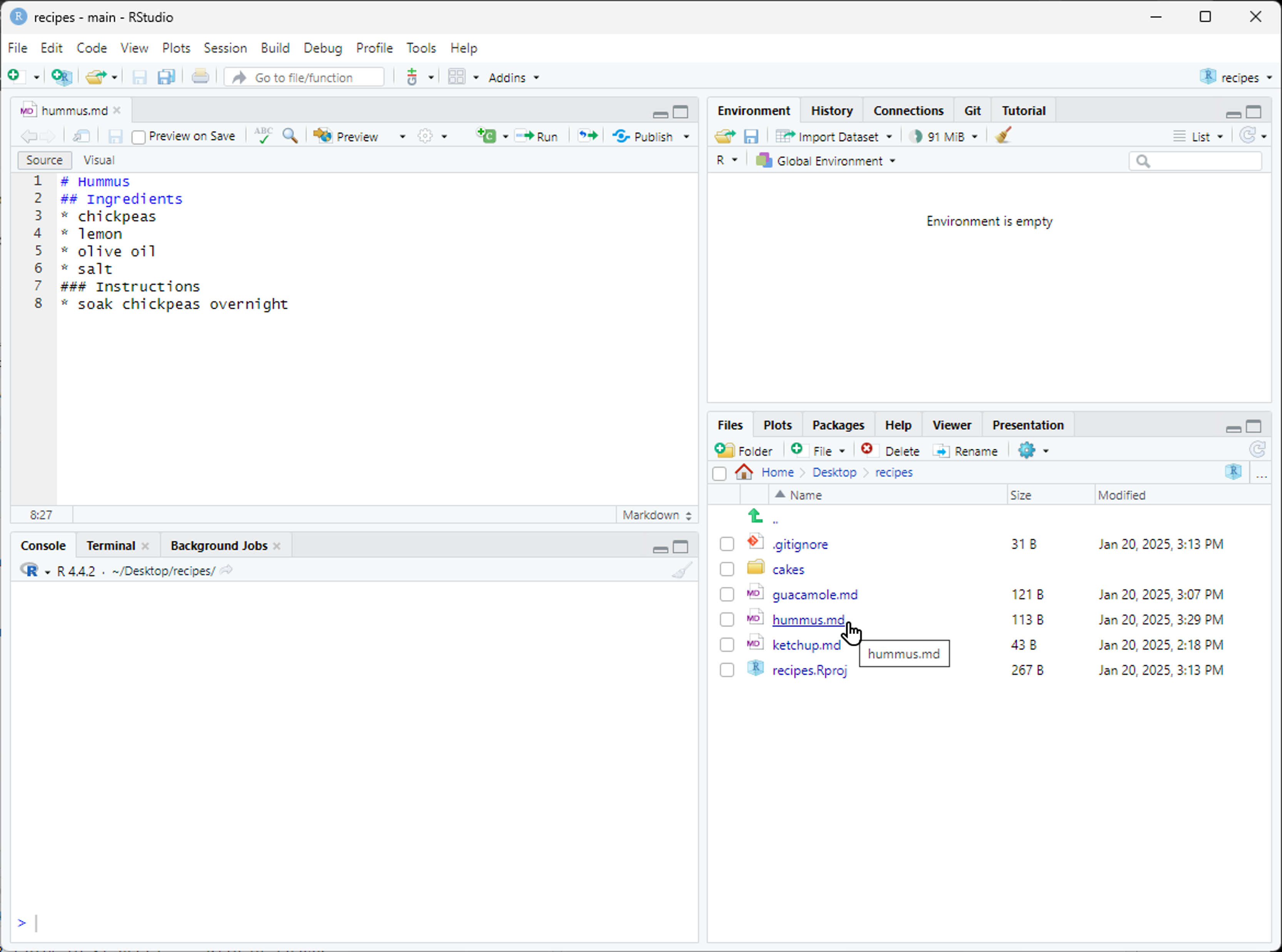
Figure 6
Image 1 of 1: ‘RStudio screenshot showing the Git menu dropdown with the "Commit..." option selected’
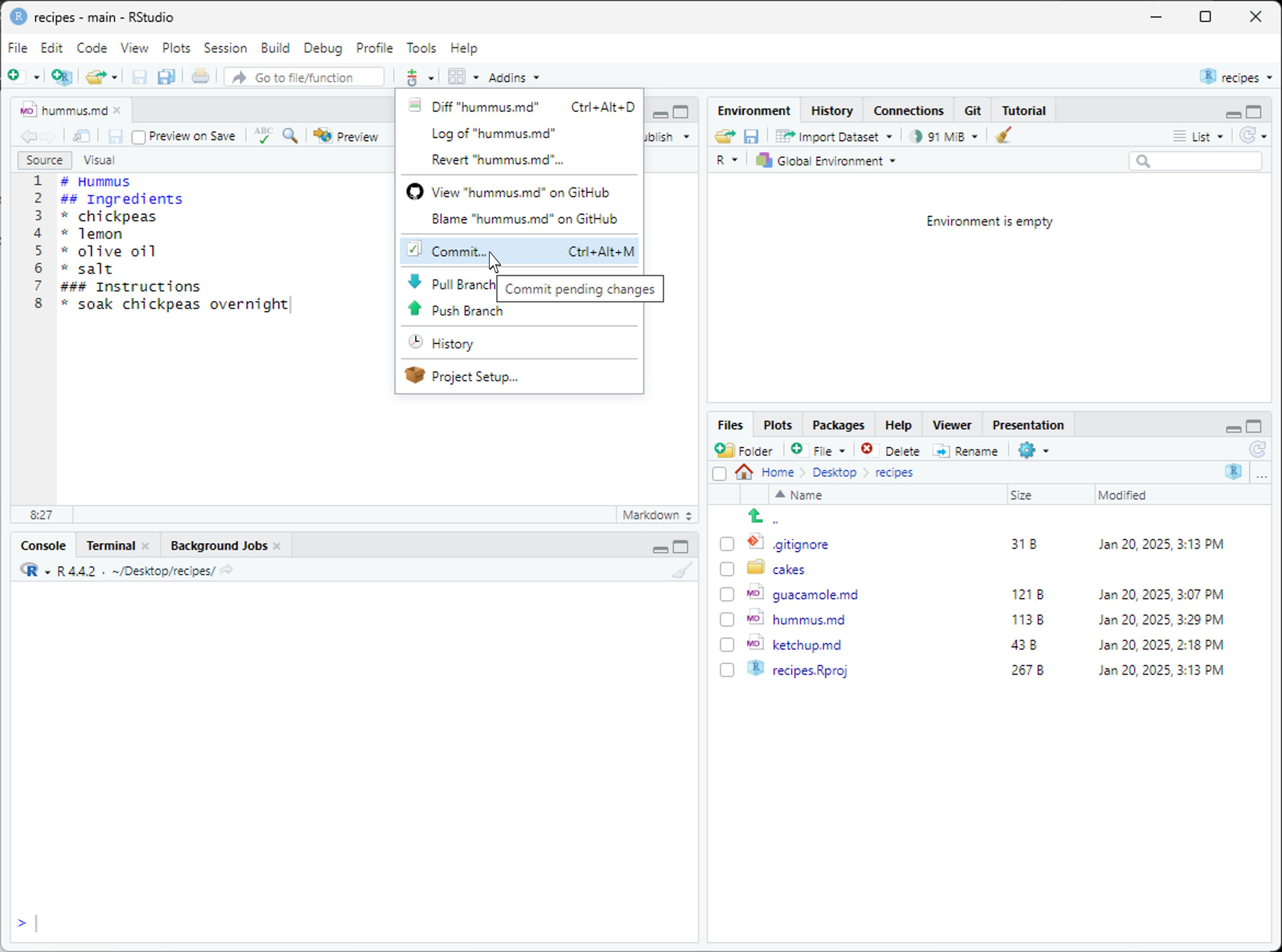
Figure 7
Image 1 of 1: ‘RStudio screenshow showing the "Review Changes" dialog. The top left panel shows the list of files that can be included or excluded from the commit. The top right panel is for writing a commit message. The bottom panel shows information about the currently selected file in the top left panel.’
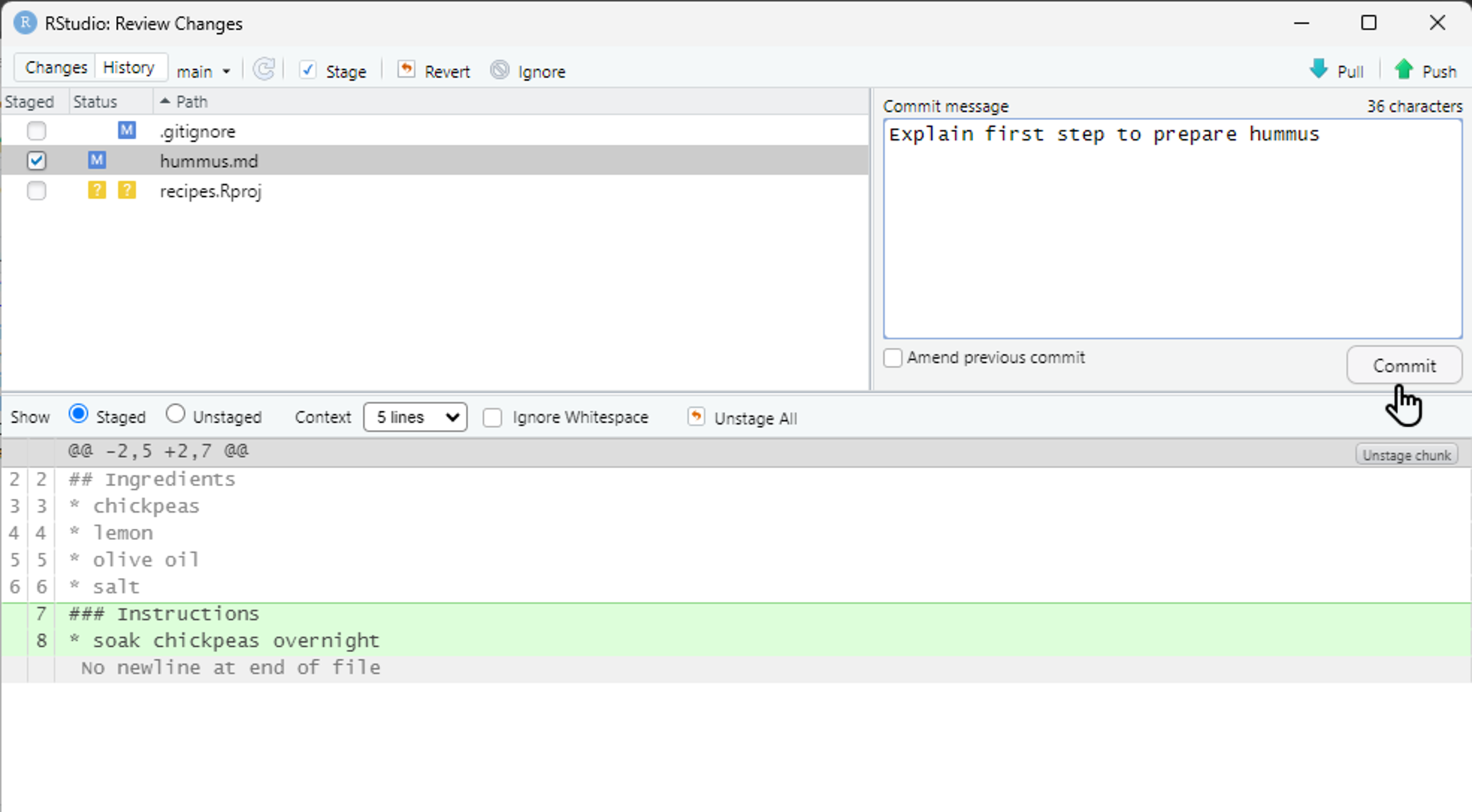
Figure 8
Image 1 of 1: ‘RStudio screenshot showing the git menu dropdown with the "History" option selected’
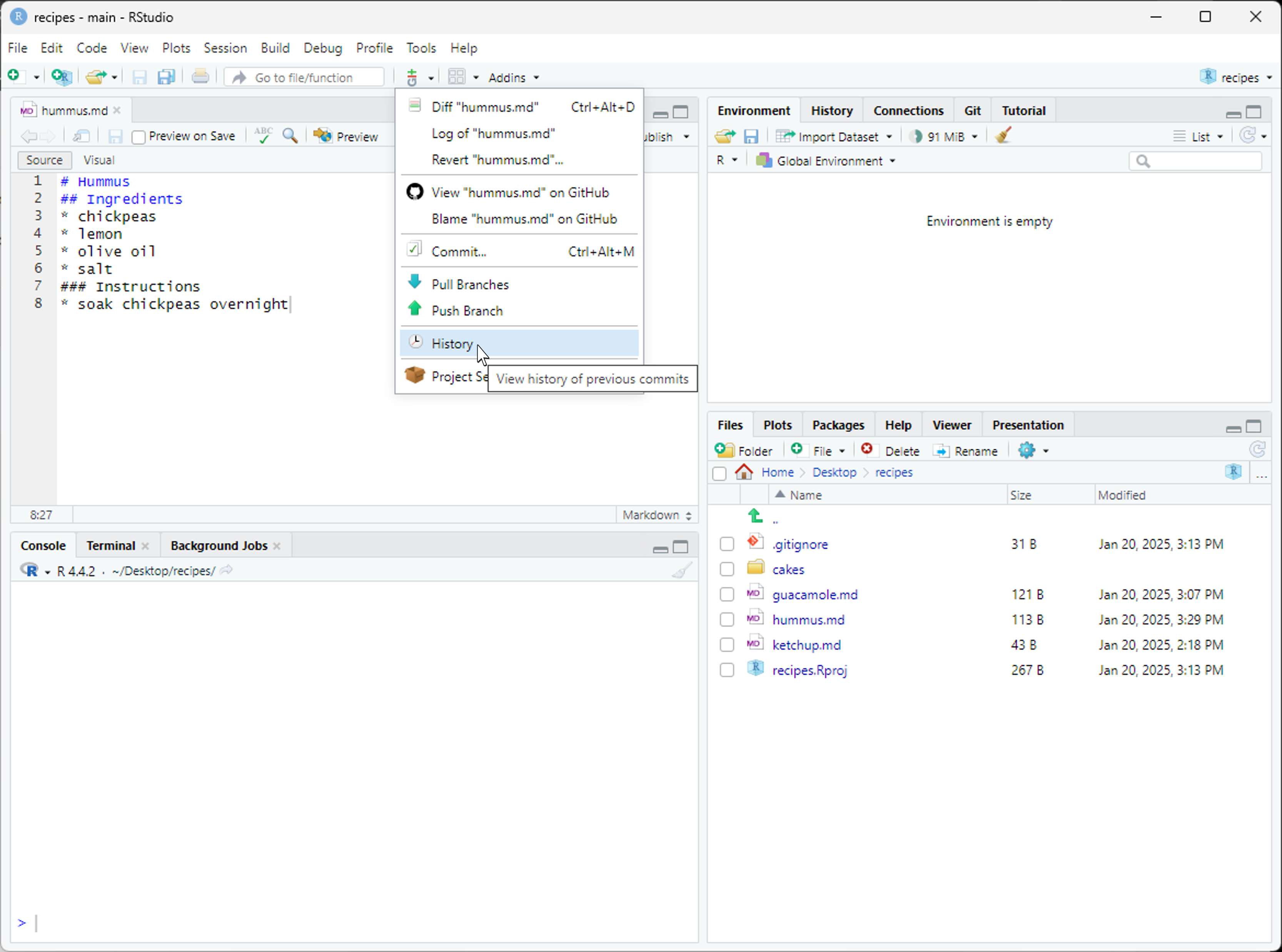
Figure 9
Image 1 of 1: ‘RStudio screenshot showing the "Review Changes" dialog after pressing the "History" button. The top panel lists the commits in the repository, similar to git log. The bottom panel shows the changes included in the commit that has been selected in the top panel.’
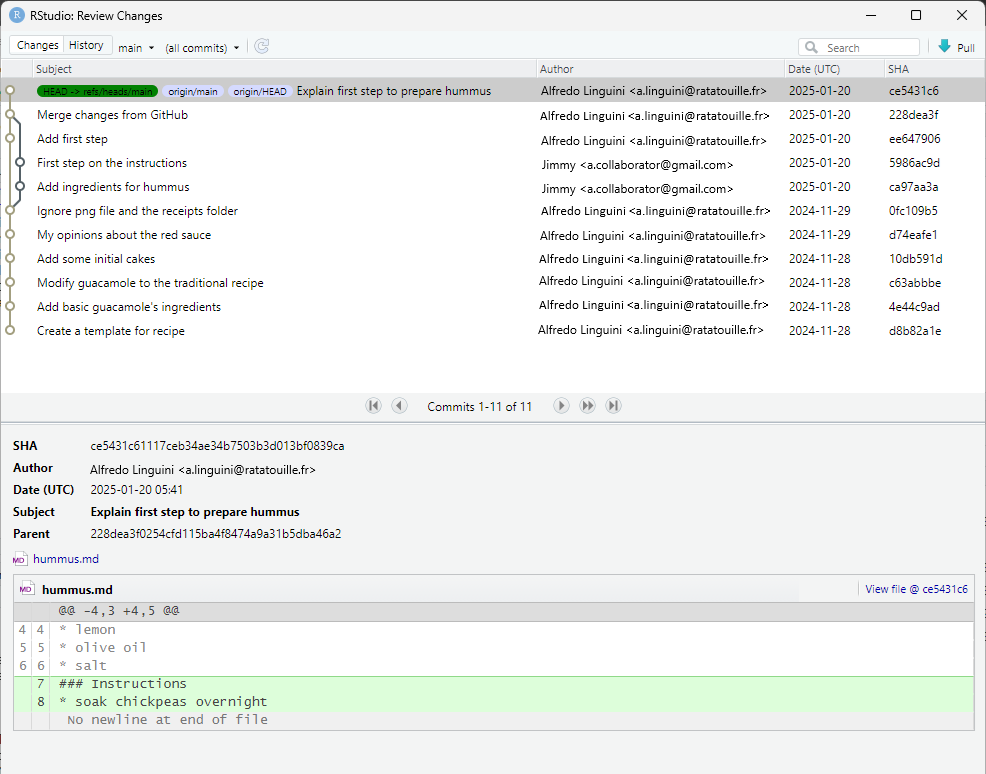
Figure 10
Image 1 of 1: ‘GitHub screenshot showing where to find the commit history button.’
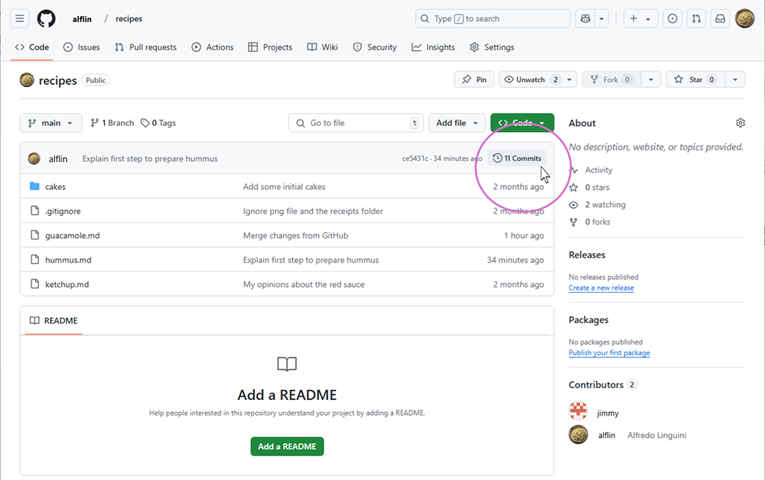
Figure 11
Image 1 of 1: ‘GitHub screenshot showing commit history.’
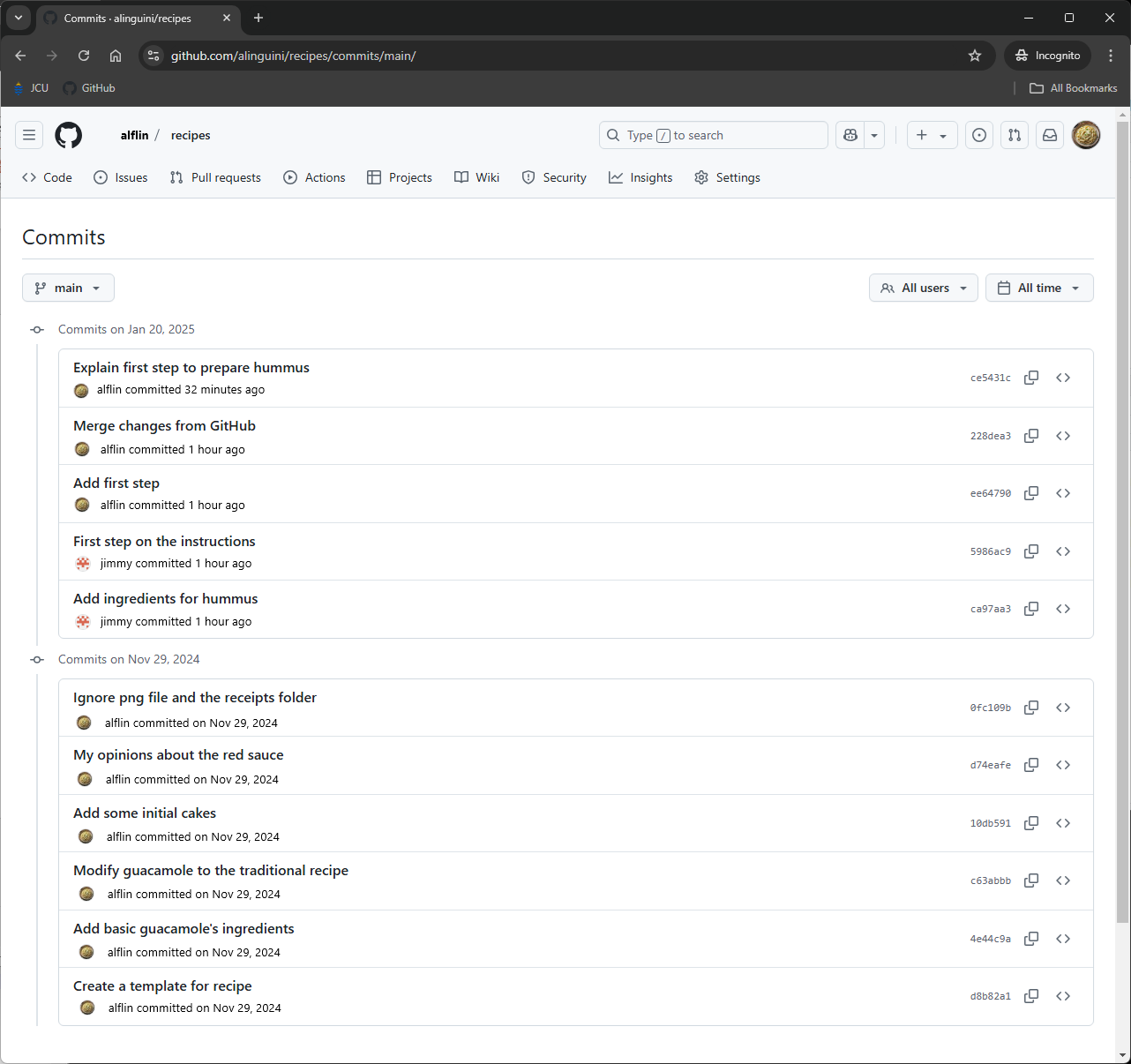
Figure 12
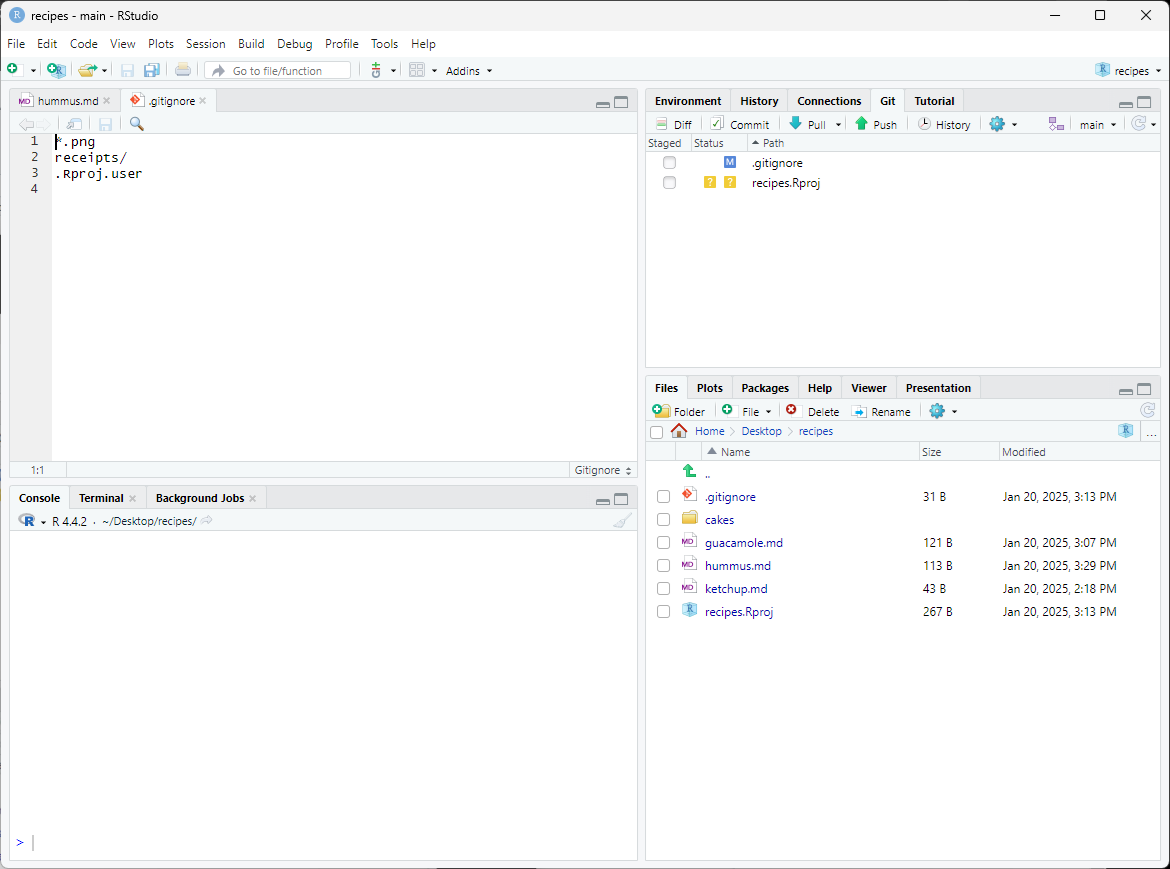
Image 1 of 1: ‘RStudio screenshot showing .gitignore open in the editor pane with the .Rproj.user folder added to the end.’