
Remotes
Last updated on 2025-12-02 | Edit this page
Estimated time: 45 minutes
Overview
Questions
- How do I share my changes with others on the web?
Objectives
- Explain what remote repositories are and why they are useful.
- Push to or pull from a remote repository.
Version control really comes into its own when we begin to collaborate with other people. We already have most of the machinery we need to do this; the only thing missing is to copy changes from one repository to another.
Systems like Git allow us to move work between any two repositories. In practice, though, it’s easiest to use one copy as a central hub, and to keep it on the web rather than on someone’s laptop. Most programmers use hosting services like GitHub, Bitbucket or GitLab to hold those main copies; we’ll explore the pros and cons of this in a later episode, but will be using the OECD Algobank for this lesson
Let’s start by sharing the changes we’ve made to our current project with the world. To this end we are going to create a remote repository that will be linked to our local repository.
1. Create a remote repository
Sign in to the OECD
Algobank, navigate to the [CARPENTRIES_PYTHON] group and create your
own project in the group using the New project button:

Next you will have to choice of three different options for creating
a project: Create blank project,
Create from template and Import project.
Create a blank project and use a project name containing your name to
create an individual project, e.g. alfredos-recipes Name
your repository “recipes” and then click “Create Repository”.
Note: Since this repository will be connected to a local repository, it needs to be empty. Uncheck “Initialize repository with a README”.
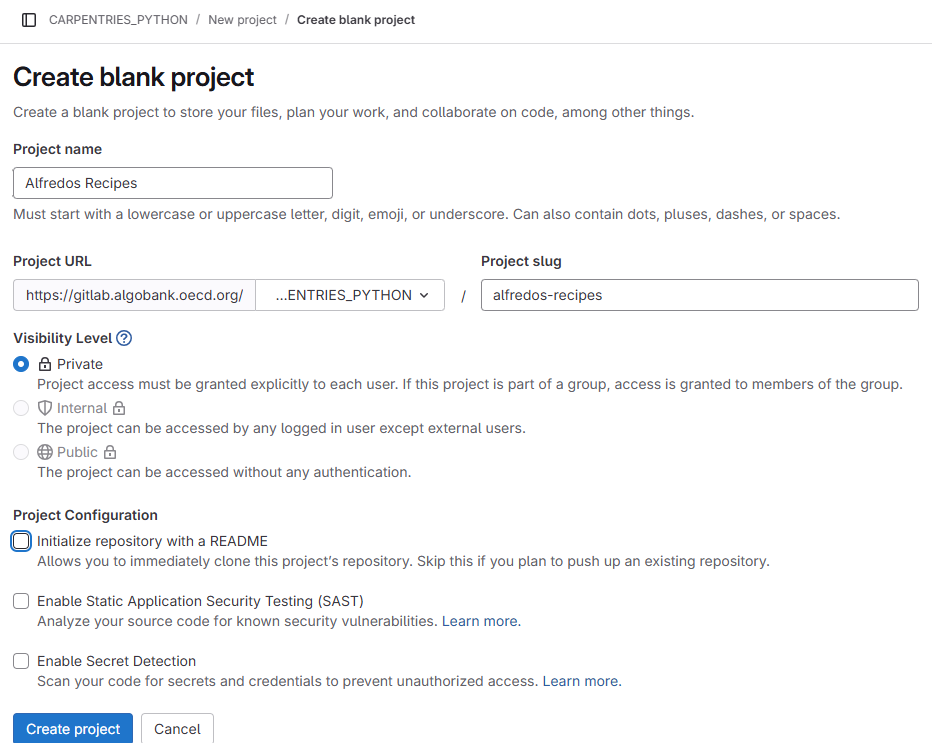
As soon as the repository is created the Algobank displays a page with a URL and some information on how to configure your local repository:
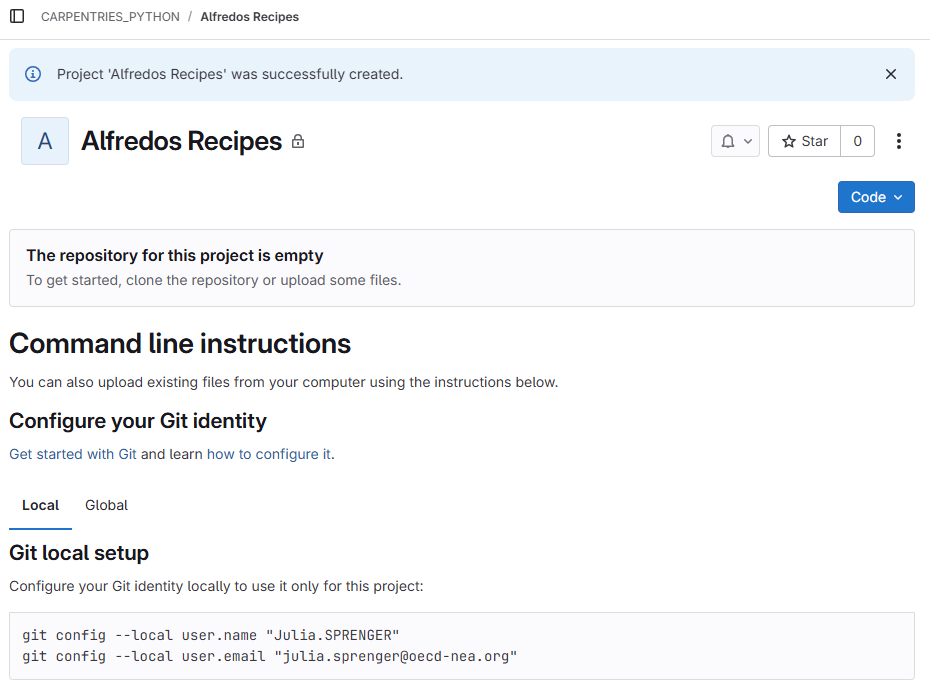
This effectively does the following on the Algobank server:
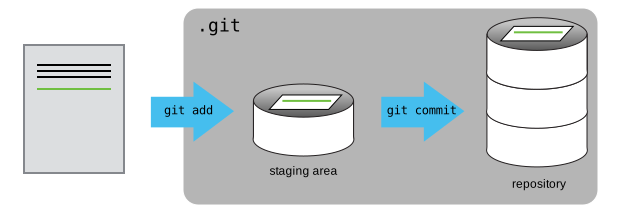
If you remember back to the earlier episode where we added and committed our
earlier work on guacamole.md, we had a diagram of the local
repository which looked like this:
Now that we have two repositories, we need a diagram like this:
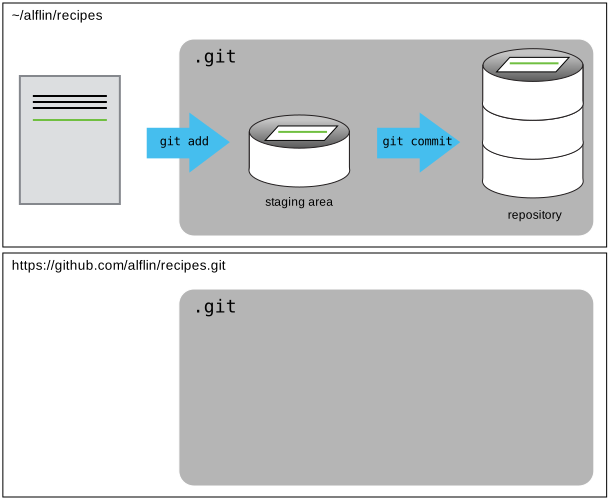
Note that our local repository still contains our earlier work on
guacamole.md, but the remote repository on GitHub appears
empty as it doesn’t contain any files yet.
2. Connect local to remote repository
Now we connect the two repositories. We do this by making the GitHub repository a remote for the local repository. The home page of the repository includes the URL string we need to identify it:
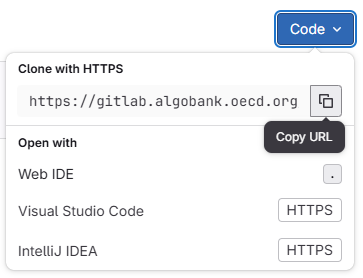
Copy that URL from the browser, go into the local
recipes repository, and run this command:
BASH
$ git remote add origin https://gitlab.algobank.oecd.org/CARPENTRIES_PYTHON/alfredos_recipes.gitMake sure to use the URL for your repository rather than Alfredo’s:
the only difference should be your username instead of
alfredos.
origin is a local name used to refer to the remote
repository. It could be called anything, but origin is a
convention that is often used by default in git and git servers, so it’s
helpful to stick with this unless there’s a reason not to.
We can check that the command has worked by running
git remote -v:
OUTPUT
origin   https://gitlab.algobank.oecd.org/CARPENTRIES_PYTHON/alfredos_recipes.git (fetch)
origin   https://gitlab.algobank.oecd.org/CARPENTRIES_PYTHON/alfredos_recipes.git (push)
We’ll discuss remotes in more detail in the next episode, while talking about how they might be used for collaboration.
3. HTTPS Authentication Setup
Before Alfredo can connect to a remote repository, he needs to set up
a way for his computer to authenticate with the Algobank so it knows
it’s him trying to connect to his remote repository. For security
resons, thes requires another password than the OECD credentials. The
password will be linked to specific scope of permissions Alfredos
account has and is therefore called Personal access token,
short PAT.
Now, going to gitlab.algobank.oecd.org, click on your profile icon in the top left corner to get the drop-down menu.
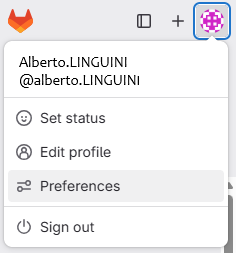
Click “Preferences”, then on the preferences page, click “Personal
access tokens”. Click the “Add new token” button on the top right. Now,
you can add the token name. Alfredo uses git_token since he
is going to use the token with git and adds a description
to it with some details:
Token to push and pull from Algobank repositories.
He sets the expiration date for in a year, since he plans to work on
Algobank projects for at least that time. He grants
read_repository and write_repository scopes to
the PAT.
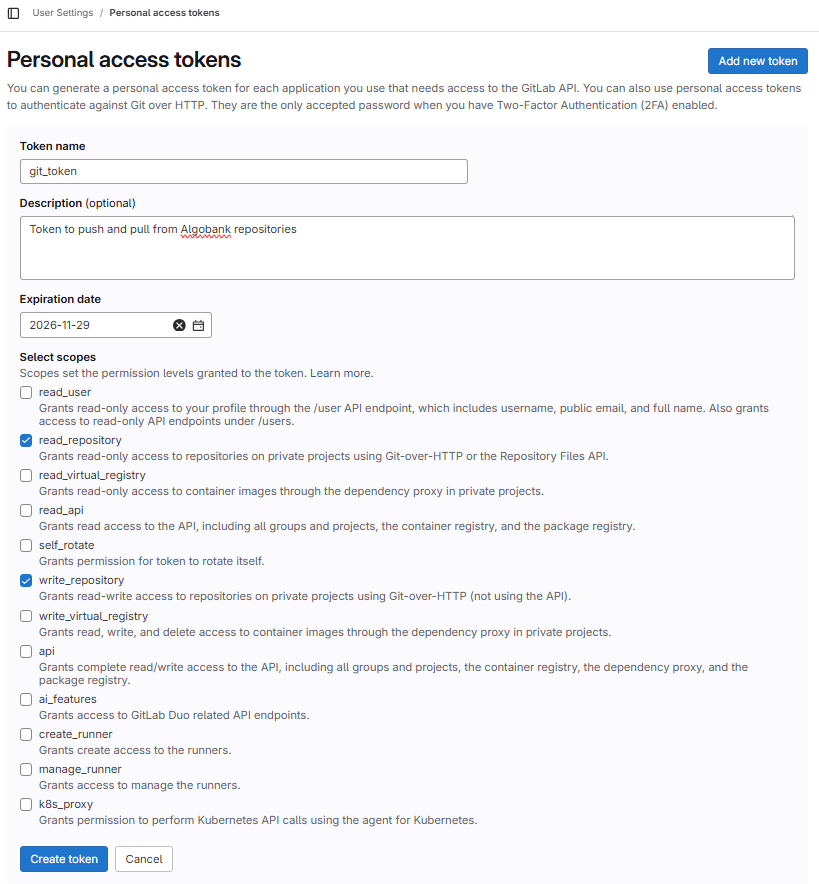
Click on Create token for the token to be generated. For
security reasons this page will only be displayed once, so use the
copy token button to put the token in your clipboard and
save the token in your password manager of choice.
For more documentation on PAT setup, see the OECD Service-now article.
4. Push local changes to a remote
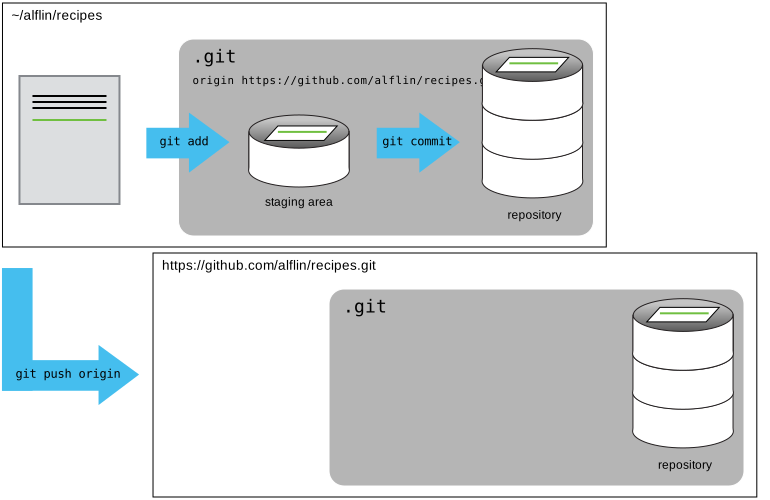
Now that authentication is setup, we can return to the remote. This command will push the changes from our local repository to the repository on GitHub:
This will open a dialog and prompt for Alfredos credentials. He uses his email address associated with his account (alfredo.linguini@oecd.org) and the PAT he just created. Depending on the default system setting, the prompt can appear directly in the terminal or in a pop-up window:
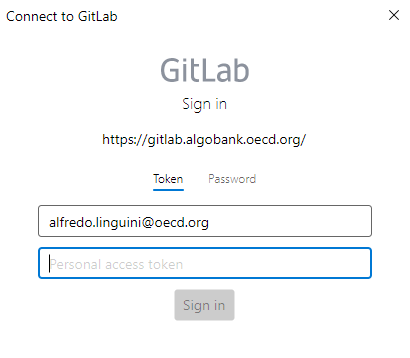
After confirming the credentials the upload process of git will report back th following:
OUTPUT
Enumerating objects: 16, done.
Counting objects: 100% (16/16), done.
Delta compression using up to 8 threads.
Compressing objects: 100% (11/11), done.
Writing objects: 100% (16/16), 1.45 KiB | 372.00 KiB/s, done.
Total 16 (delta 2), reused 0 (delta 0)
remote: Resolving deltas: 100% (2/2), done.
To https://gitlab.algobank.oecd.org/CARPENTRIES_PYTHON/alfredos_recipes.git
* [new branch] main -> mainPassword Managers
If your operating system has a password manager configured,
git push will try to use it when it needs your username and
password. For example, this is the default behavior for Git Bash on
Windows.
If git is not already configured to cache your credentials you can set a timewindow for caching them to 1 day via
Note that the time is set in seconds, here 86400 indicates the number of seconds in a day (60 x 60 x 24) seconds.
Our local and remote repositories are now in this state:
The ‘-u’ Flag
You may see a -u option used with git push
in some documentation. This option is synonymous with the
--set-upstream-to option for the git branch
command, and is used to associate the current branch with a remote
branch so that the git pull command can be used without any
arguments. To do this, simply use git push -u origin main
once the remote has been set up.
We can pull changes from the remote repository to the local one as well:
OUTPUT
From https://gitlab.algobank.oecd.org/CARPENTRIES_PYTHON/alfredos_recipes.git
 * branch            main     -> FETCH_HEAD
Already up-to-date.
Pulling has no effect in this case because the two repositories are already synchronized. If someone else had pushed some changes to the repository on GitHub, though, this command would download them to our local repository.
Algobank webinterface
Browse to your Alfredos_recipes repository on the
Algobank. Click on the History button to get the list of
commits. What information can you gather/explore from here? How would
you get that same information in the shell?
The list of commits permits to view all details of each commit
accessible via git log in the local repository.
By clicking on a commits you will see details of the selected commit. In the list view you can copy the commit identifier using the duplicate button on the right.
The right-most button lets you view all of the files in the
repository at the time of that commit. To do this in the shell, we’d
need to checkout the repository at that particular time. We can do this
with git checkout ID where ID is the identifier of the
commit we want to look at. If we do this, we need to remember to put the
repository back to the right state afterwards!
Uploading files directly in Algobank browser
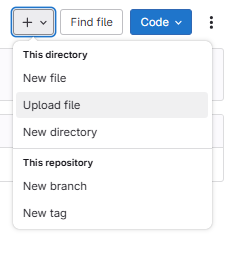
The algobank also allows you to skip the command line and upload files directly to your repository without having to leave the browser. You can click the “Upload files” button in the toolbar at the project page. This will open a dialog window to select the file to upload.
Git Timestamp
Create a remote repository on the Algobank. Push the contents of your local repository to the remote. Make changes to your local repository and push these changes. Go to the repo you just created on the Algobank and check the timestamps of the files. How does Git record times, and why?
The Algobank displays timestamps in a human readable relative format (i.e. “22 hours ago” or “three weeks ago”). However, if you hover over the timestamp, you can see the exact time at which the last change to the file occurred.
Push vs. Commit
In this episode, we introduced the “git push” command. How is “git push” different from “git commit”?
When we push changes, we’re interacting with a remote repository to update it with the changes we’ve made locally (often this corresponds to sharing the changes we’ve made with others). Commit only updates your local repository.
GitHub License and README files
In this episode we learned about creating a remote repository on the Algobank, but when you initialized your repo, you didn’t add a README.md file. If you had, what do you think would have happened when you tried to link your local and remote repositories?
In this case, we’d see a merge conflict due to unrelated histories. When the Algobank creates a README.md file, it performs a commit in the remote repository. When you try to pull the remote repository to your local repository, Git detects that they have histories that do not share a common origin and refuses to merge.
OUTPUT
warning: no common commits
remote: Enumerating objects: 3, done.
remote: Counting objects: 100% (3/3), done.
remote: Total 3 (delta 0), reused 0 (delta 0), pack-reused 0
Unpacking objects: 100% (3/3), done.
From https://gitlab.algobank.oecd.org/CARPENTRIES_PYTHON/alfredos_recipes
 * branch            main     -> FETCH_HEAD
 * [new branch]      main     -> origin/main
fatal: refusing to merge unrelated histories
You can force git to merge the two repositories with the option
--allow-unrelated-histories. Be careful when you use this
option and carefully examine the contents of local and remote
repositories before merging.
OUTPUT
From https://gitlab.algobank.oecd.org/CARPENTRIES_PYTHON/alfredos_recipes
 * branch            main     -> FETCH_HEAD
Merge made by the 'recursive' strategy.
README.md | 1 +
1 file changed, 1 insertion(+)
create mode 100644 README.md- A local Git repository can be connected to one or more remote repositories.
- Use the HTTPS protocol to connect to remote repositories.
-
git pushcopies changes from a local repository to a remote repository. -
git pullcopies changes from a remote repository to a local repository.