
Summary and Schedule
The Unix shell has been around longer than most of its users have been alive. It has survived because it’s a powerful tool that allows users to perform complex and powerful tasks, often with just a few keystrokes or lines of code. It helps users automate repetitive tasks and easily combine smaller tasks into larger, more powerful workflows.
Use of the shell is fundamental to a wide range of advanced computing tasks, including high-performance computing. These lessons will introduce you to this powerful tool.
Prerequisites
This lesson guides you through the basics of file systems and the shell. If you have stored files on a computer at all and recognize the word “file” and either “directory” or “folder” (two common words for the same thing), you’re ready for this lesson.
| Setup Instructions | Download files required for the lesson | |
| Duration: 00h 00m | 1. Introducing the Shell | What is a command shell and why would I use one? |
| Duration: 00h 05m | 2. Navigating Files and Directories |
How can I move around on my computer? How can I see what files and directories I have? How can I specify the location of a file or directory on my computer? |
| Duration: 00h 45m | 3. Working With Files and Directories |
How can I create, copy, and delete files and directories? How can I edit files? |
| Duration: 01h 35m | 4. Pipes and Filters |
How can I combine existing commands to produce a desired output? How can I show only part of the output? |
| Duration: 02h 10m | 5. Loops | How can I perform the same actions on many different files? |
| Duration: 03h 00m | 6. Shell Scripts | How can I save and re-use commands? |
| Duration: 03h 45m | 7. Finding Things |
How can I find files? How can I find things in files? |
| Duration: 04h 30m | Finish |
The actual schedule may vary slightly depending on the topics and exercises chosen by the instructor.
Download files
You need to download some files to follow this lesson.
- Download shell-lesson-data.zip and move the file to your Desktop.
- Unzip/extract the file. Let your instructor know if you need
help with this step. You should end up with a new folder called
shell-lesson-dataon your Desktop.
Install software
In this workshop we will use the git bash shell within
Visual Studio Code. See instructions on how to install both tools on the
dedicated workshop page.
Open a new shell
After installing the software
- Open the VSCode Terminal view Use
View>Terminalto open the terminal view in VSCode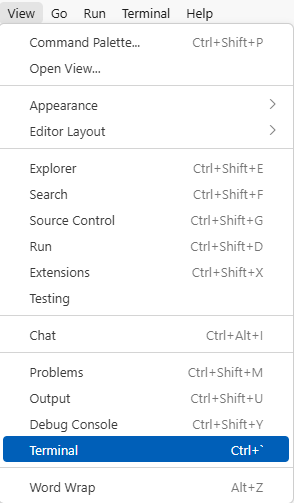
- Open a Git Bash panel Use the
+option in the terminal view to open a git bash terminal.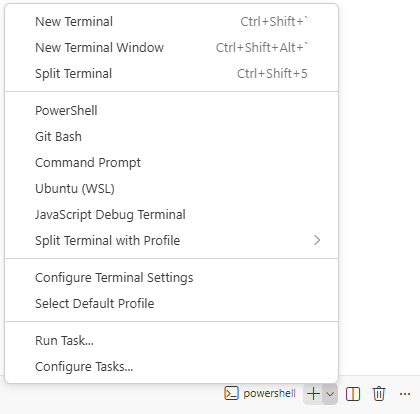
Note: In cake Git Bash is not in your list of terminals
try to open it it by typing bash in the current
terminal.
- In the terminal type
cd ~then press the Return key. This step will make sure you start with your home folder as your working directory.
In the lesson, you will find out how to access the data files in this folder.
Where to type commands: How to open a new shell
The shell is a program that enables us to send commands to the computer and receive output. It is also referred to as the terminal or command line.
Different types of shell programs exist. The default on OECD Windows
is Powershell, but for compatibility with git
and other Unix based tools we will use the Git Bash as
default in this workshop. Note that most Unix-based shells behave very
similar, so many commands you learn here will also apply on most
Unix-based systems and shells. Powershell and other Windows
based systems however share only a very small set of common commands. We
recommend for shell based work to rely on Unix-based shells, here
Bash, which we installed together with git as
Git Bash.
Computers with Windows operating systems do not automatically have a Unix Shell program installed. In this lesson, we encourage you to use an emulator included in Git for Windows, which gives you access to both Bash shell commands and Git.
Once installed, you can open a terminal by running the program Git Bash from the Windows start menu.
For advanced users:
As an alternative to Git for Windows you may wish to Install the Windows Subsystem for Linux which gives access to a Bash shell command-line tool in Windows 10 and above.
Please note that commands in the Windows Subsystem for Linux (WSL) may differ slightly from those shown in the lesson or presented in the workshop.